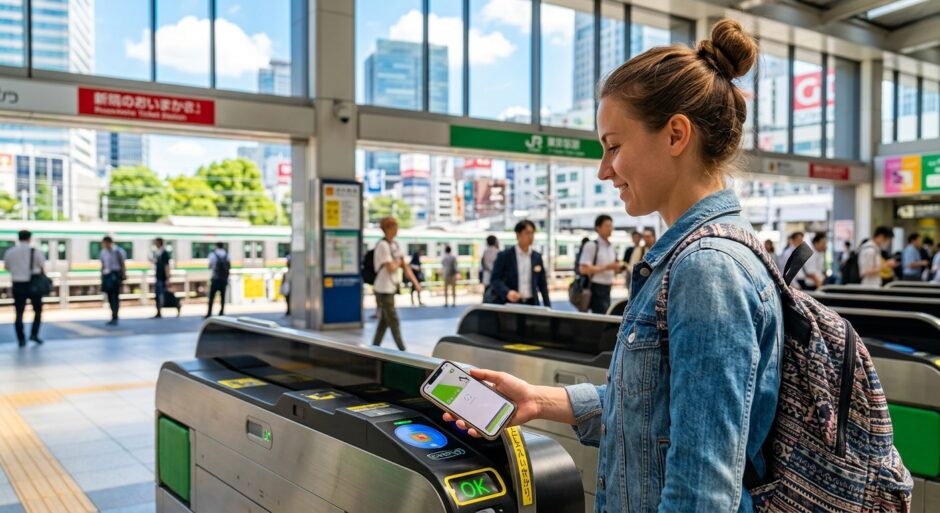

Imagine landing at Narita or Haneda Airport, your bags are packed, the neon lights of Tokyo are calling, and you’re ready to breeze through the ticket gates like a local. You pull out your iPhone, double-tap the side button, and… **Error.** 😱
The line behind you is growing. The “ping-pong” sound of the gate rejecting you echoes through the station. We’ve all been there. While Mobile Suica is arguably the greatest travel “hack” for Japan, it can be a finicky beast.
Welcome to the **Japan Hacks** ultimate guide to mastering Mobile Suica. We aren’t just giving you the basics; we’re giving you the technical fixes to ensure your Apple Wallet remains your best friend from Hokkaido to Kyushu.
—
🇯🇵 Quick Hack Summary: Mobile Suica Mastery
- ✅ Mastercard/Amex is King: Foreign Visa cards often fail for top-ups.
- ✅ Mind the Midnight Gap: System maintenance happens daily (02:00 – 04:00 AM JST).
- ✅ Express Mode: Enable this to tap without waking your phone or using FaceID.
- ✅ The Region Hack: Switch your iPhone region to “Japan” if the card won’t add.
(Beginner-Friendly)
—
## 📱 Why Mobile Suica is Non-Negotiable
Since 2023, physical Suica and PASMO cards have been harder to find due to the global chip shortage. While they are slowly returning, the digital version remains superior. It’s not just for trains; it’s your wallet for vending machines, convenience stores (Konbini), and even some lockers.
📊 Digital vs. Physical Suica
100%
40%
*Physical cards require 500 yen deposit and kiosk lines.
—
## 🛠️ Error #1: “Payment Not Completed” (The Visa Struggle)
This is the most common headache. You try to add 1,000 yen, and Apple Wallet gives you a generic “Payment Not Completed” error.
**The Hack:**
In Japan, there is a long-standing compatibility issue between Apple Pay, the Suica system, and international **VISA** cards. While some Visas work, a vast majority are blocked by the 3D Secure verification used in Japan.
💡 Pro-Tip: The Mastercard/Amex Workaround
If your Visa fails, try a Mastercard or American Express card. These have a nearly 100% success rate for recharging Suica through Apple Wallet. No Mastercard? Use a travel card like Revolut or Wise—just ensure you’ve loaded them with a Mastercard/Amex backend.
—
## 🛠️ Error #2: “Card Not Added” (The Region Setting)
Sometimes, when you go to `Wallet > + > Transit Card > Suica`, the option doesn’t even appear, or it fails during the activation phase.
**The Hack:**
Your iPhone needs to “think” it’s ready for Japan.
1. Go to **Settings > General > Language & Region**.
2. Change your **Region** to **Japan**.
3. Go back to the Wallet app and try adding the card again.
4. Once the card is added, you can switch your region back to your home country!
—
チャージ
(Chāji)
“Charge” / Top-up your card
—
## 🛠️ Error #3: The Midnight Blackout (Maintenance)
You’re at a late-night karaoke session in Shinjuku, it’s 2:30 AM, and you try to add money to your Suica to get the last train or a taxi. It fails repeatedly.
**The Hack:**
The Suica system undergoes **daily maintenance** from approximately **2:00 AM to 4:00 AM JST**. During this window, you cannot top up your card or add a new card to your wallet.
* **The Fix:** Always top up your Suica before 1:00 AM if you plan on being out late!
—
## 🛠️ Error #4: “Double Click to Pay” (Express Transit Mode)
If you find yourself standing at the gate frantically double-clicking your power button to bring up Apple Pay, you’re doing it the hard way.
**The Hack:**
Enable **Express Transit Mode**. This allows you to tap your iPhone (or Apple Watch) against the reader without waking the screen, using FaceID, or entering a passcode. It even works for up to 5 hours after your phone battery dies (on iPhone XS and later)!
—
⚠️ Manner Alert: Don’t Be a Gate Blocker!
If your Suica fails at the gate, don’t stand there trying to fix it. Step aside immediately to let the rush of commuters pass. Go to the “Window” (Station Office) next to the gates—the staff are wizards at fixing “stuck” cards.
—
## 🛠️ Error #5: Moving to a New iPhone
If you bought a new iPhone 15 or 16 for your trip, you might find your Suica is missing from your new device even after a backup restore.
**The Hack:**
A Suica card can only live on **one device at a time**.
1. On your **old device**: Go to Wallet, select Suica, tap the three dots (…) > Card Details > **Remove Card**.
2. This uploads the card (and your money!) to Apple’s servers.
3. On your **new device**: Open Wallet > + > Previous Cards. Your Suica will appear there with the balance intact.
—
## 🚉 Suica, PASMO, or ICOCA?
Does it matter which one you use? In short: **No.** Thanks to the nationwide integration, a Suica (Tokyo/JR East) works perfectly in Osaka (where they use ICOCA) or Kyoto.
📊 IC Card Usage Success Rate Across Japan
100%
100%
65%
*In very rural areas, cash is still king!
—
## 💡 Final “Japan Hacks” Insider Tips
1. **Low Balance Alert:** You can set a notification in the Wallet app to remind you when your balance drops below 1,000 yen. Never get stuck at the exit gate again!
2. **Tax-Free Shopping:** You cannot use Suica for tax-free refunds, but you *can* pay for your tax-free purchase with Suica at stores like Don Quijote or Bic Camera.
3. **The “Suica App”:** While Apple Wallet is great, downloading the official **Suica App** (yellow icon with a penguin) allows you to see a detailed history of your transactions—great for tracking your travel budget!
Mastering the Mobile Suica is your first step to becoming a Japan travel pro. It removes the friction of physical tickets and lets you focus on what really matters: finding the best bowl of ramen in the city. 🍜
—